
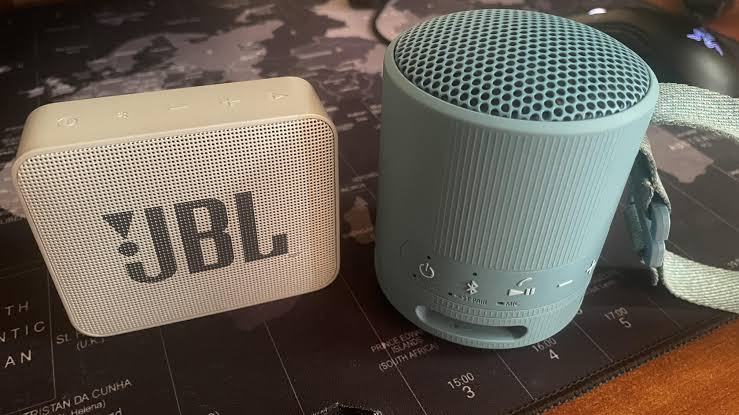
Connecting two Bluetooth speakers to one laptop can make music, movies, presentations, and gaming more enjoyable. Instead of relying on a single speaker, you can use two speakers to create a wider sound experience. However, the process depends on your laptop’s operating system, Bluetooth capabilities, and the features supported by your speakers.
Many Windows and Mac laptops allow you to pair multiple Bluetooth audio devices, but pairing two speakers does not always mean that both will play sound simultaneously. If you want to learn more about wireless audio devices and practical technology solutions, resources such as GadgetFreek can also help you explore useful tips for everyday gadgets.
This guide explains how to connect two Bluetooth speakers to one laptop, the different methods you can try, and how to fix common problems when both speakers do not play audio together.
Can You Connect Two Bluetooth Speakers to One Laptop?
Yes, you can pair two Bluetooth speakers with one laptop in many cases. However, playing audio through both speakers simultaneously is a separate challenge.
Bluetooth pairing allows your laptop to remember and connect to multiple devices. Standard Windows and macOS audio settings, however, generally select one primary output device at a time. You may need additional software, a compatible audio feature, or specialized hardware to play sound through both speakers simultaneously.
Before getting started, check whether your speakers support a feature such as stereo pairing, party mode, or multi-speaker connection. Some speaker manufacturers provide their own applications for linking two compatible speakers together.
Method 1: Connect Two Bluetooth Speakers on Windows
Windows laptops can pair with multiple Bluetooth devices. The following steps help you connect both speakers and determine whether your setup supports simultaneous playback.
Step 1: Turn On Bluetooth
First, make sure Bluetooth is enabled on your laptop.
- Open the Start menu.
- Select Settings.
- Click Bluetooth & devices.
- Turn Bluetooth on.
Keep both speakers close to your laptop during the setup process. Also, make sure they have enough battery power and are not actively connected to another device.
Step 2: Pair the First Speaker
Put your first Bluetooth speaker into pairing mode. Usually, you can do this by pressing and holding its Bluetooth button until an indicator light flashes.
On your laptop, select Add device, choose Bluetooth, and wait for the speaker to appear. Click its name to complete the pairing process.
Once connected, play a short audio clip to confirm that the speaker works properly.
Step 3: Pair the Second Speaker
Repeat the same process for your second speaker.
Open Bluetooth & devices, select Add device, and choose Bluetooth. Select the second speaker when it appears.
Your laptop should now remember both speakers. If the second speaker does not appear, disconnect it from any phone or tablet and activate pairing mode again.
Step 4: Check Your Audio Output Settings
Click the speaker icon on the Windows taskbar and open the sound output options. Depending on your Windows version, you may see a list of available audio devices.
Select the speaker you want to use.
If only one speaker plays sound, do not assume that the second speaker is faulty. Windows may not provide a built-in option to send the same audio to two independent Bluetooth speakers.
Method 2: Use Windows Stereo Mix
Stereo Mix is a Windows audio feature available on some computers. It can sometimes help route audio between devices, but it is not a universal solution for connecting two Bluetooth speakers.
Check Whether Stereo Mix Is Available
- Open the Control Panel.
- Select Hardware and Sound, then Sound.
- Open the Recording tab.
- Right-click inside the device list and enable Show Disabled Devices.
- Look for Stereo Mix.
If Stereo Mix appears, you can explore its Properties and available listening or routing options. Depending on your sound driver, you may be able to direct audio to another playback device.
However, this method can introduce delays, echo, or synchronization problems. Many modern laptops do not expose Stereo Mix at all, and enabling it does not automatically create a reliable two-speaker Bluetooth setup.
For a more dependable solution, consider software designed to create a virtual audio output or use a speaker manufacturer’s multi-speaker feature.
Method 3: Use Audio Software to Play Sound Through Two Speakers
If your Windows laptop can connect to both speakers but plays sound through only one, virtual audio software may provide another option.
Some audio-routing applications let users send the same audio signal to multiple output devices. Depending on the application, you may be able to select both Bluetooth speakers as destinations.
How to Set Up Audio Routing
- Pair both Bluetooth speakers with your laptop.
- Install a reputable audio-routing application that supports multiple output devices.
- Open the application and select both speakers as output destinations, if supported.
- Set the application’s virtual audio device as your Windows playback device.
- Play music and adjust the volume on each speaker.
The exact steps depend on the software you choose. Some applications require extra configuration, and not every program supports two independent Bluetooth outputs.
Keep in mind that Bluetooth latency can differ between speakers. Even if both devices receive the same audio, one speaker might play slightly later than the other. This can create an echo or make music sound less clear.
Method 4: Connect Two Bluetooth Speakers on a Mac
Mac computers can also pair with multiple Bluetooth speakers. To play audio through both, you can try the built-in Audio MIDI Setup utility.
Step 1: Pair Both Speakers
Open System Settings and select Bluetooth. Turn on both speakers and put them into pairing mode.
Click Connect beside each speaker when it appears. Confirm that both devices show as connected.
Step 2: Open Audio MIDI Setup
Use Spotlight Search to find Audio MIDI Setup.
Open the application and look for the audio device configuration window. If necessary, select Show Audio Devices from the Window menu.
Step 3: Create a Multi-Output Device
- Click the plus (+) button in the audio device window.
- Select Create Multi-Output Device.
- Check the boxes beside both Bluetooth speakers.
- Choose an appropriate primary or clock device if the interface provides that option.
- Select the new multi-output device as your Mac’s sound output.
Now play an audio file and check whether both speakers produce sound.
The exact available settings can vary by macOS version and device compatibility. If one speaker disconnects or the sound becomes unstable, reconnect both speakers and review the configuration.
Method 5: Use the Speakers’ Built-In Pairing Feature
For many users, a manufacturer’s built-in multi-speaker feature is the easiest way to play audio through two Bluetooth speakers.
Some models support functions with names such as Party Mode, Dual Audio, Stereo Pairing, or Connect+. The terminology depends on the manufacturer.
How It Works
Instead of asking your laptop to manage two separate audio outputs, you connect the speakers to each other using their supported feature. Your laptop then sends audio to the primary speaker, which coordinates playback with the second speaker.
To use this method:
- Check whether both speakers support the same pairing feature.
- Connect the primary speaker to your laptop.
- Activate the manufacturer’s multi-speaker mode.
- Follow the instructions for adding the second speaker.
- Play audio and test the synchronization.
Compatibility is important. Two speakers from the same brand may still be incompatible if they use different generations of wireless pairing technology.
Consult the manufacturer’s instructions before attempting this setup.
Method 6: Use a Bluetooth Transmitter With Dual-Audio Support
If software solutions are unreliable, a Bluetooth transmitter that explicitly supports two audio devices may be worth considering.
A compatible transmitter can connect to your laptop’s headphone jack or another supported audio output and transmit sound to two compatible Bluetooth speakers.
Before buying one, check these details:
- Dual-device support: The transmitter must support two simultaneous audio connections, not just two paired devices.
- Speaker compatibility: Confirm that it works with your speakers and their Bluetooth audio profiles.
- Latency: Look for low-latency support if you plan to watch videos or play games.
- Connection type: Verify that your laptop has a compatible audio output or that the transmitter supports your preferred connection method.
This approach can be useful when the laptop’s operating system does not offer convenient multi-output audio. However, it may not solve every synchronization issue, particularly when the speakers have different latency characteristics.
Common Problems When Connecting Two Bluetooth Speakers
Even when both speakers pair successfully, you may encounter problems during playback. Here are some practical ways to troubleshoot them.
Only One Speaker Plays Sound
Check the selected output device and confirm whether your operating system supports simultaneous playback. Pairing two speakers alone does not guarantee that both receive audio.
Try a supported multi-speaker mode or audio-routing software.
One Speaker Has a Delay
Different Bluetooth speakers can process audio at different speeds. Keep the speakers reasonably close together, update their firmware if available, and use a compatible pairing feature designed to synchronize playback.
If the delay remains noticeable, the speakers may not work well together for simultaneous playback.
The Second Speaker Will Not Connect
Turn off Bluetooth on nearby phones or tablets that may already be connected to the speaker. Restart the speaker, activate pairing mode, and try again.
If necessary, remove the speaker from your laptop’s saved Bluetooth devices and pair it again.
Audio Keeps Cutting Out
Wireless interference, low battery levels, distance, and obstacles can interrupt Bluetooth audio. Move the speakers closer to the laptop and reduce interference from other wireless devices.
You can also disconnect unused Bluetooth devices and restart your laptop before testing again.
The Sound Echoes
An echo often indicates that one speaker is playing audio later than the other. Try the speakers’ supported stereo or party mode instead of routing audio independently through two Bluetooth connections.
Tips for Getting Better Sound Quality
Connecting two speakers is only part of creating a good listening experience. Placement and compatibility also matter.
Place the speakers at a similar distance from your listening position. For music, try positioning them on opposite sides of the room while avoiding corners that make bass sound excessively strong.
Keep both speakers charged and use similar volume levels. If the speakers offer an official application, check for firmware updates and audio synchronization settings.
For additional technical guidance on Bluetooth technology and its capabilities, the Bluetooth Special Interest Group provides information about Bluetooth standards and related features.
Conclusion
Connecting two Bluetooth speakers to one laptop is possible, but the best method depends on your operating system and the capabilities of your devices. Windows users can try compatible audio-routing software, while Mac users can explore the Multi-Output Device feature in Audio MIDI Setup.
For the simplest experience, check whether your speakers support a shared stereo or party mode. A dual-audio Bluetooth transmitter is another option when software-based methods are unsuitable.
Most importantly, remember that pairing two speakers is not the same as playing sound through both simultaneously. By checking compatibility, selecting the right connection method, and troubleshooting audio delays, you can create a more enjoyable wireless listening setup.