
Artificial intelligence is no longer limited to large technology companies or expensive cloud platforms. Today, many AI models can run directly on a personal computer. This means you can experiment with AI tools, work with private files, generate text, write code, and explore different models without sending every request to an online service.
If you have ever wondered how to run an AI model on your computer, the process is easier than it may seem. You do not necessarily need a powerful workstation or advanced programming knowledge. With the right software, a compatible computer, and a suitable AI model, you can get started in a relatively short time.
What Does It Mean to Run an AI Model Locally?
Running an AI model locally means that the model operates on your own computer instead of depending entirely on a remote server.
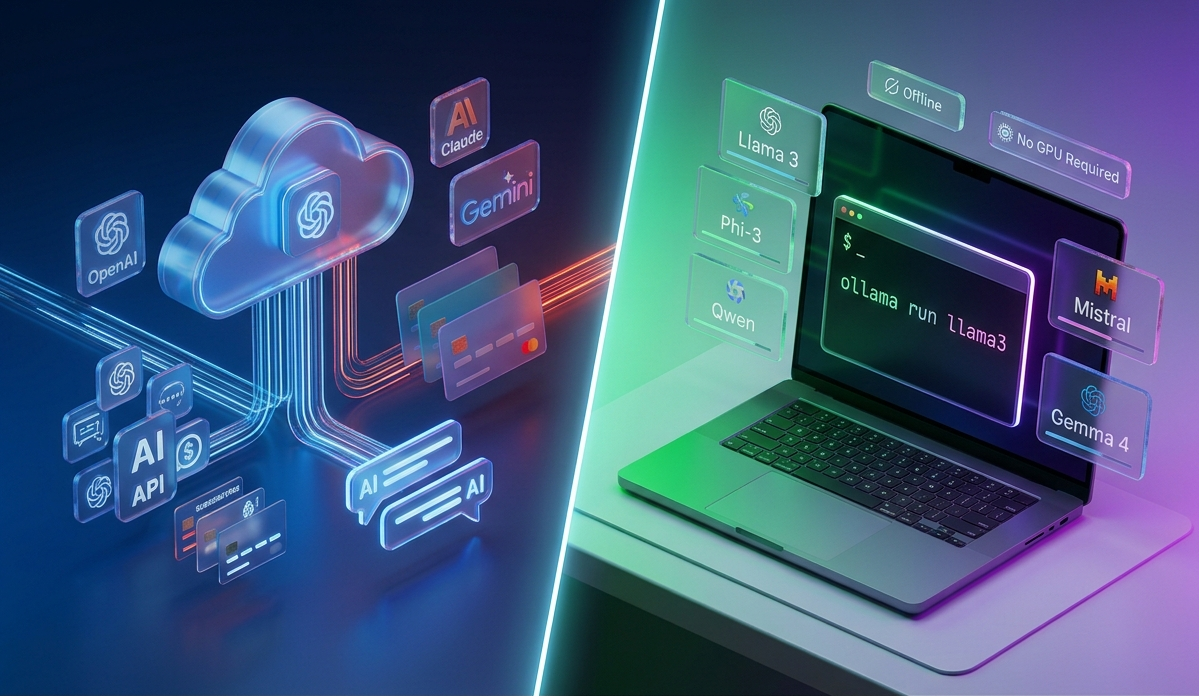
For example, when you use an online AI chatbot, your question is normally sent to a company’s servers. The server processes your request and sends the response back to your device. With a local AI model, the model files are stored on your computer, and your computer performs the processing.
Local AI can be useful when you want more control over your data. It can also be helpful when you want to experiment with AI without relying on an internet connection for every request.
However, local AI has its own requirements. Larger models can require significant amounts of RAM, storage, and GPU memory, so choosing a model that matches your computer is important.
Check Your Computer Before Getting Started
Before downloading an AI model, check your computer’s hardware. The exact requirements depend on the model you want to run.
Your RAM is one of the most important factors. Smaller models can work on computers with relatively modest memory, while larger models may need considerably more.
A dedicated GPU can make AI processing much faster because many AI workloads benefit from GPU acceleration. NVIDIA GPUs are commonly supported by local AI software, although some applications can also use other hardware.
You should also check your available storage space. AI model files can range from relatively small downloads to many gigabytes.
Finally, keep your operating system and graphics drivers updated. Updated software can improve compatibility and performance.
Choose an AI Model
The next step is choosing a model. There are many open and downloadable AI models designed for different purposes.
Some models are primarily designed for general conversation and text generation. Others are optimized for coding, summarization, translation, image generation, or specialized tasks.
Do not automatically choose the biggest model available. A larger model may provide better results for certain tasks, but it can also require much more hardware.
For a first experiment, a smaller or quantized model is often easier to run. Quantization reduces the size and memory requirements of a model while attempting to maintain useful performance.
Think about what you actually want the model to do before downloading it. If your goal is simple text generation, you may not need a huge model.
Use Local AI Software
You generally need an application that can download, manage, and run local AI models. Several tools are designed to make this process easier for people who do not want to build an AI environment from scratch.
A graphical application can be especially useful for beginners because it may allow you to download a model and start chatting with it through a simple interface.
Other tools are command-line based and give you more control over model settings, hardware acceleration, and integrations.
The best choice depends on your technical experience and what you want to accomplish. Beginners may prefer a simple interface, while developers may prefer a command-line tool or programming library.
Download and Load the Model
After installing your chosen local AI application, select a model that your computer can handle.
Pay attention to the model’s file size and recommended hardware. If a model requires more memory than your computer has available, the application may run extremely slowly or fail to load the model.
Once the model has been downloaded, the software usually prepares it for local use. Depending on the application, this may happen automatically.
After loading the model, you can enter a prompt and receive a response. The first response may take some time because the computer needs to load the model into memory.
Write a Good Prompt
Running an AI model locally does not mean that prompting becomes unimportant. The quality of your instructions can have a significant effect on the output.
Instead of asking a vague question, provide clear instructions.
For example, instead of writing:
“Write about computers.”
you could ask:
“Explain how computer RAM affects the performance of local AI models in simple English for beginners.”
You can also tell the model what style and format you want. For example, you could request a short explanation, a numbered guide, or a table.
Experimenting with different prompts is one of the easiest ways to understand how your local model behaves.
Understand Model Performance
Local AI performance depends on several factors. Your processor, GPU, RAM, storage, model size, and software configuration can all affect speed.
A computer with a capable GPU may generate responses much faster than a basic laptop. However, CPU-only operation can still be useful for smaller models.
You may notice terms such as tokens per second when testing a model. This generally refers to how quickly the system processes or generates tokens. Higher numbers usually mean faster generation, although speed is not the only measure of model quality.
If your model feels slow, try a smaller model or a more heavily quantized version. Closing unnecessary applications can also free memory for the AI workload.
Keep Your Data Private
One major reason people explore local AI is privacy.
When an AI model runs entirely on your computer, your prompts and files do not necessarily need to be sent to an external AI provider. This can be useful when working with sensitive documents or personal information.
However, privacy depends on the software you use and how it is configured. Some applications may have optional online features, telemetry, model downloads, or integrations.
Before using a local AI application for sensitive information, review its privacy settings and understand where your data is being processed.
Update Models Carefully
AI models and local AI applications are updated regularly. New versions may improve performance, fix problems, or provide additional features.
However, you do not always need to download every new model. Model files can be large, and switching models can change the quality and speed of your results.
It is often better to keep a model that works well for your specific computer and tasks rather than constantly changing your setup.
You should also keep backups of important configurations or prompts if you have created a customized local AI workflow.
Can You Run AI Without a Powerful GPU?
Yes, but your experience will depend heavily on the model.
Smaller models can often run on systems without a dedicated GPU. The computer may use its CPU and system RAM instead.
The trade-off is speed. CPU-based AI can be noticeably slower, especially with larger models.
If you have an older laptop, start with a smaller model and realistic expectations. You can always experiment with larger models later if you upgrade your hardware.
Why Run an AI Model on Your Computer?
There are several reasons to try local AI.
First, it can provide greater control over your AI environment. You can choose which models to use and configure them according to your needs.
Second, local models can be useful for privacy-focused workflows. Your information can stay on your device when the software and model are configured for completely offline operation.
Third, local AI is a great way to learn. You can experiment with different models, prompts, settings, and hardware without needing to build a complete AI system from scratch.
There are also limitations. Local models may not match the capabilities of the largest cloud-based systems, and running them can consume considerable computer resources.
Final Thoughts
Learning how to run an AI model on your computer is a practical way to explore artificial intelligence. The basic process involves checking your hardware, choosing an appropriate model, installing local AI software, downloading the model, and testing different prompts.
You do not need to start with the largest or most complicated model. A smaller model that runs smoothly can be a much better starting point.
As you become more comfortable, you can experiment with different models, improve your prompts, adjust performance settings, and build more advanced local AI workflows. Whether you are interested in learning, coding, productivity, or privacy, running AI locally can give you a better understanding of how modern AI systems work.
Frequently Asked Questions
1. Can I run an AI model on a normal computer?
Yes. Many smaller AI models can run on ordinary desktops and laptops. The amount of RAM, processing power, and available storage you need depends on the model.
2. Do I need a dedicated GPU to run AI locally?
No. Some models can run using your computer’s CPU and RAM. However, a compatible GPU can significantly improve performance for many AI workloads.
3. Is running an AI model locally free?
The software and many AI models are available at no cost, but you still need suitable computer hardware. Larger models may also require substantial storage and memory.
4. Can a local AI model work without the internet?
Yes. Once the necessary software and model files have been downloaded, some local AI setups can operate completely offline. Make sure the particular application does not require an online service for the features you are using.
5. What is the easiest way to start with local AI?
Start with a beginner-friendly local AI application and a small model that matches your computer’s hardware. Test basic prompts first, then experiment with larger models and more advanced settings as you become comfortable.